.webp)
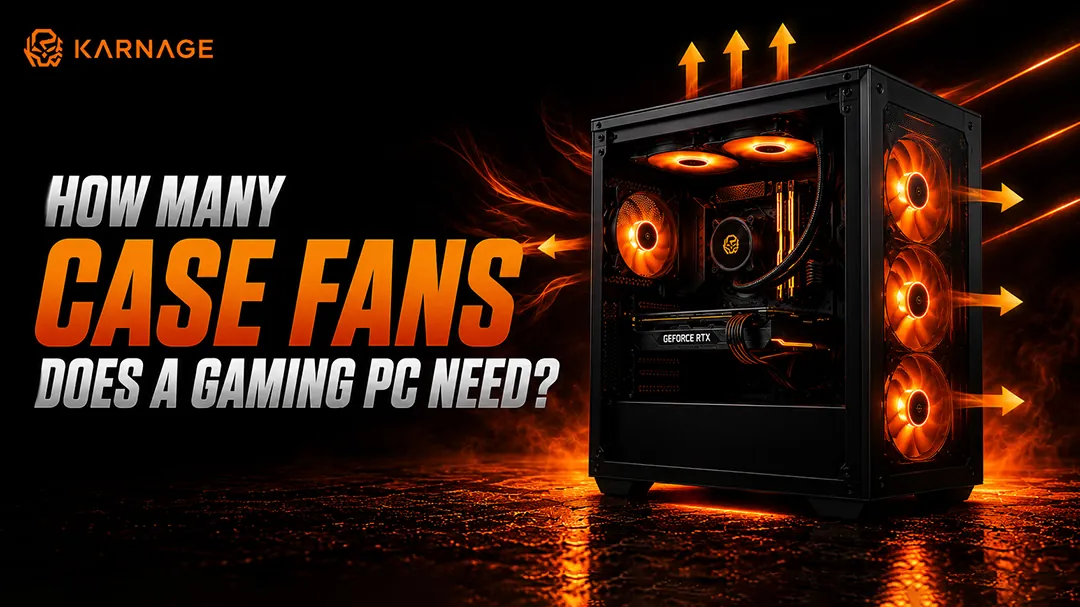
Building a gaming PC is about more than choosing a powerful CPU, GPU, and plenty of RAM. Proper airflow is equally important because gaming hardware generates a significant amount of heat during demanding workloads. This is where case fans play an important role.
But how many case fans does a gaming PC need? Do you need two fans, three fans, or six or more? The answer depends on your PC case, hardware, fan sizes, airflow layout, and the type of games or workloads you run.
In this guide, we'll explain how many case fans you actually need, where to position them, where to connect case fans, and how to install fans in computer case setups. We'll also answer the common question: are case fans necessary for every gaming PC?
Table of Contents
- How Many Case Fans Does a Gaming PC Need?
- Are Case Fans Necessary?
- Understanding Intake and Exhaust Fans
- What Is the Best Case Fan Configuration?
- Where to Connect Case Fans
- How to Install Fans in Computer Case
- Positive, Negative, and Neutral Air Pressure
- Do More Case Fans Improve Gaming FPS?
- How Many Fans Do You Need for a High-End Gaming PC?
- Common Case Fan Mistakes to Avoid
- Final Thoughts
- Frequently Asked Questions
How Many Case Fans Does a Gaming PC Need?
For most gaming PCs, 3 to 4 case fans provide a good balance between airflow, temperatures, noise, and cost.
A common setup is:
- 2 front intake fans
- 1 rear exhaust fan
- 1 top exhaust fan
However, you don't necessarily need four fans. A basic gaming PC can often work well with 2 or 3 properly positioned fans, while high-performance systems with powerful CPUs and GPUs may benefit from additional airflow.
Here's a general guide:
The goal isn't to install as many fans as possible. The goal is to create a consistent airflow path that brings cool air into the case and pushes hot air out.
Are Case Fans Necessary?
One of the most common questions among new PC builders is, are case fans necessary?
In most gaming PCs, yes. Case fans help move air through the chassis and prevent hot air from becoming trapped around the CPU, GPU, motherboard, and other components.
Some cases include one or more pre-installed fans, while others may require you to purchase them separately. If your case already has adequate airflow and included fans, you may not need to add more immediately.
However, are case fans necessary if your PC only has a low-power CPU and integrated graphics? In that situation, additional fans may not be essential if the case already provides adequate ventilation.
For a dedicated gaming PC with a discrete GPU, however, proper airflow is highly recommended. A graphics card can generate substantial heat, particularly during long gaming sessions.
So, when asking are case fans necessary, the better question is whether your existing cooling setup can maintain appropriate temperatures under your typical workload.
Understanding Intake and Exhaust Fans
Before deciding how many fans to use, you need to understand the two basic airflow directions.
Intake Fans
Intake fans bring cool air from outside the case into the PC.
They are commonly installed at:
- Front
- Bottom
- Side
Front intake fans are especially common in traditional ATX and mid-tower cases.
Exhaust Fans
Exhaust fans remove warm air from inside the case.
They are commonly installed at:
- Rear
- Top
- Sometimes the back or side, depending on the case
Hot air naturally tends to rise, which is one reason top-mounted exhaust fans can be useful.
The most important thing is to establish a clear airflow path instead of having fans working against each other.
What Is the Best Case Fan Configuration?
For most gaming PCs, a front-to-back airflow configuration is a simple and effective starting point.
2-Fan Setup
If you're building a budget gaming PC, you can start with:
- 1 front intake
- 1 rear exhaust
This provides a basic airflow path through the case.
3-Fan Setup
A better configuration is:
- 2 front intake
- 1 rear exhaust
This is an excellent starting point for many gaming systems.
4-Fan Setup
For a more capable gaming PC:
- 2 front intake
- 1 rear exhaust
- 1 top exhaust
This adds additional exhaust capacity while maintaining a straightforward airflow path.
5–6 Fan Setup
For high-end hardware:
- 2–3 front intake
- 1 rear exhaust
- 1–2 top exhaust
The exact configuration depends on the case and whether you're using an air cooler or liquid CPU cooler.
More fans don't automatically mean better temperatures. Poor placement can create turbulence or unnecessary noise, so airflow direction matters more than simply increasing the fan count.
Where to Connect Case Fans
Another important question for PC builders is where to connect case fans.
Most modern motherboards provide dedicated fan headers for system or chassis fans. These may be labeled:
- SYS_FAN
- CHA_FAN
- CASE_FAN
- SYS_FAN1
- SYS_FAN2
The exact naming depends on your motherboard manufacturer.
When you're deciding where to connect case fans, first check your motherboard manual. It will show the location and capabilities of each fan header.
Connecting Fans to the Motherboard
If your case fan uses a standard motherboard-compatible fan connector, connect it to an appropriate system or chassis fan header. Once connected, the motherboard can often monitor and control the fan speed through BIOS/UEFI or the manufacturer's software.
What If You Don't Have Enough Fan Headers?
If your motherboard doesn't have enough headers for all your fans, you have several options:
- A compatible fan splitter
- A powered fan hub
- A case fan controller
A powered fan hub can be particularly useful when a case has multiple fans.
When deciding where to connect case fans, avoid randomly connecting them without checking the motherboard or hub specifications. Make sure the fan, header, and hub are electrically compatible.
How to Install Fans in Computer Case
If you're wondering how to install fans in computer case, the process is relatively straightforward once you understand airflow direction.
Step 1: Check Your Case
Before buying fans, check the case specifications. Look for supported fan sizes such as 120 mm, 140 mm, or 200 mm, and check which locations support intake or exhaust fans.
Step 2: Identify the Airflow Direction
Most case fans have small arrows on the frame indicating blade rotation direction and airflow direction. If your fan doesn't have visible arrows, the side with the support frame and motor structure is generally the exhaust side.
This is important because installing an intake fan backward can disrupt the intended airflow.
Step 3: Position the Intake Fans
Install front or bottom fans so they bring cool air into the case. For a typical front-to-back setup, the front fans should pull air from outside and push it toward the internal components.
Step 4: Install the Exhaust Fans
Rear and top fans are commonly configured as exhaust fans. They should remove warm air from inside the case.
Step 5: Secure the Fans
Use the screws provided with the fans and tighten them securely without overtightening. Make sure the fan isn't touching other components or cables.
Step 6: Connect the Fan Cables
Once the fans are physically installed, connect their cables to the appropriate motherboard headers, fan hub, or controller. This is where knowing where to connect case fans becomes important. Labeling or organizing your cables before closing the case can make future maintenance easier.
Step 7: Test the Airflow
Turn on the PC and verify that every fan is spinning in the intended direction. If temperatures increase unexpectedly after installation, check the fan orientation and airflow path.
Positive, Negative, and Neutral Air Pressure
Fan configuration also affects the air pressure inside your PC case.
Positive Air Pressure
Positive pressure means the case has more intake airflow than exhaust airflow. This can help reduce the amount of unfiltered air entering through gaps in the case when intake fans use dust filters.
Negative Air Pressure
Negative pressure means exhaust airflow is greater than intake airflow. This can provide strong heat removal in some configurations, but it may also pull air through unfiltered openings.
Neutral Air Pressure
Neutral pressure attempts to balance intake and exhaust airflow. For many gaming PCs, slightly positive airflow is a practical target, particularly when dust control is important. You don't need to calculate exact airflow numbers to build an effective gaming PC. Focus on creating a clean path from intake to exhaust.
Do More Case Fans Improve Gaming FPS?
Adding case fans doesn't directly increase FPS in every gaming PC. Instead, their primary purpose is to help components maintain suitable operating temperatures. If your CPU or GPU is already running within its normal thermal range, adding several more fans may provide little or no noticeable FPS improvement.
However, if poor airflow is causing high temperatures and thermal throttling, improving airflow can help maintain more consistent performance.
For example:
Poor airflow → Higher temperatures → Possible thermal throttling → Lower sustained performance
With better airflow:
Better airflow → Lower temperatures → More consistent clocks → More consistent gaming performance
This is particularly relevant for high-end CPUs and GPUs that generate significant heat.
How Many Fans Do You Need for a High-End Gaming PC?
A high-end gaming PC with a powerful CPU and GPU may benefit from 4–6 case fans, depending on the case design and cooling hardware.
For example:
- 3 front intake
- 1 rear exhaust
- 1–2 top exhaust
However, if your CPU uses a top-mounted radiator, the fan configuration may need to be adjusted. You should always follow the cooling layout supported by your specific case and CPU cooler rather than copying another PC's configuration exactly. Check our range of gaming cabinets built for high airflow.
Common Case Fan Mistakes to Avoid
Even with several fans installed, poor configuration can reduce cooling performance. Avoid these common mistakes:
- Installing All Fans as Intake: If every fan pushes air into the case, there may not be an efficient path for hot air to escape.
- Installing All Fans as Exhaust: This can restrict the supply of cool air entering the case.
- Mixing Airflow Directions Incorrectly: Fans positioned against the intended airflow path can create turbulence and reduce effective cooling.
- Ignoring Fan Orientation: Always check the airflow direction before mounting a fan.
- Buying Fans Without Checking Compatibility: Make sure the fan size is supported by your case and that the connector is compatible with your motherboard or fan controller.
- Adding Too Many Fans: More isn't always better. Six poorly positioned fans can be less effective than four correctly positioned fans.
Final Thoughts
For most gaming PCs, 3–4 case fans are enough to create effective airflow. A configuration with two front intake fans and one rear exhaust fan is an excellent starting point, while adding a top exhaust fan can improve airflow in many systems.
When deciding are case fans necessary, remember that the answer depends on your hardware, case design, existing cooling, and workload. A powerful gaming PC generally benefits much more from proper airflow than a low-power system.
If you're building or upgrading your PC, understanding where to connect case fans and how to install fans in computer case setups correctly is just as important as choosing the right number of fans.
The best setup isn't necessarily the one with the most fans. It is the setup that creates a clear path for cool air to enter, warm air to leave, and your CPU and GPU to maintain consistent performance during long gaming sessions.
Frequently Asked Questions (FAQs)
1. How many case fans does a gaming PC need?
Most gaming PCs work well with 3–4 case fans. Higher-performance systems may benefit from 4–6 or more depending on the hardware and case.
2. Are case fans necessary for a gaming PC?
Yes, case fans are generally recommended for gaming PCs because they help move cool air into the case and remove warm air generated by the CPU and GPU.
3. Where should case fans be installed?
Front and bottom fans are commonly used as intake, while rear and top fans are commonly used as exhaust.
4. Where to connect case fans on a motherboard?
Connect compatible case fans to system or chassis fan headers such as SYS_FAN or CHA_FAN. Check your motherboard manual for the exact header locations.
5. How to install fans in computer case?
Check your case's supported fan sizes, determine the correct airflow direction, mount the fans securely, connect them to the appropriate headers or fan hub, and verify their operation after powering on the PC.
6. Do more case fans increase FPS?
Not necessarily. Additional fans mainly improve airflow and temperatures. If your system is already adequately cooled, adding more fans may not produce a noticeable FPS improvement.