Expert guides and technical specifications for the Velocity Gaming Headset.
| Sr. no | Question | Answer |
|---|---|---|
| 1 | What’s included in the box? |
|
| Sr. no | Question | Answer |
|---|---|---|
| 1 | How do I connect Velocity Headsets? | Unbox the headset and remove any protective films. Adjust the headband and earcups for a secure, comfortable fit. Connect the attached cable to your host device. |
| 2 | How do I power it ON/OFF? | Wired headsets do not require a power button — they become active as soon as they are plugged into the host device. |
| 3 | How do I adjust the Mic? | The microphone is Omnidirectional; simply position it near your mouth for optimal clarity. |
| 4 | How do I adjust volume? | Use the inline volume controller on the Left Earcup for immediate level changes. Also confirm system and application volume on the host. |
| Sr. no | Question | Answer |
|---|---|---|
| 1 | What is the driver size in the headset? | 50mm drivers optimized with virtual 7.1 processing to reproduce positional, multi-channel audio. |
| 2 | What is 7.1 virtual surround? | Software-driven multi-channel simulation that provides positional audio for gaming—enabled when using the USB interface and PC software. |
| 3 | What kind of microphone is used? | Omnidirectional microphone with noise-reduction tuning for clear in-game voice. |
| 4 | Does it have swappable earpads? | Yes, user-replaceable earpads for quick removal and replacement (for hygiene or customization). |
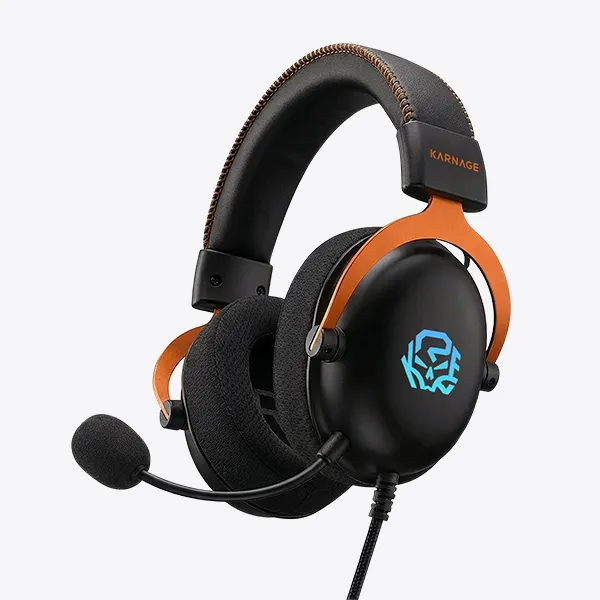
| 5 | Are there inline controls? | Yes, volume controls are located on the Left Earcup. |
| 6 | Is dedicated software available? | Yes — a dedicated PC application provides EQ presets, virtual 7.1 toggle, mic gain settings, and voice effects. |
| Sr. no | Question | Answer |
|---|---|---|
| 1 | What does the inline controls do? | Rotate In-line Control ↑/↓ to Increase/Decrease the Volume. |
| Sr. no | Question | Answer |
|---|---|---|
| 1 | What is the power input requirement? | The headset is USB-powered and does not contain an internal battery. |
| 2 | Does it have auto shut-off? | No, as the headset is USB-powered and active whenever plugged in. |
| Sr. no | Question | Answer |
|---|---|---|
| 1 | Which platforms are supported? | Windows, macOS, iOS, and Android systems. |
| 2 | Can it be used with gaming consoles or TVs? | Yes, basic stereo audio is supported on consoles/TVs, but virtual 7.1 and PC software features are not available. |
| 3 | Does it support mobile devices? | Yes, basic stereo audio is supported on mobile devices. |
| Sr. no | Question | Answer |
|---|---|---|
| 1 | Why is there no audio? |
|
| 2 | Why is the microphone not working? | Set the Velocity microphone as the default input device in OS settings and check for app-specific permissions. |
| 3 | Why aren’t the inline controls responding? | Reconnect the headset directly to the host (avoid hubs) and confirm the OS recognizes the device. |
| 4 | Why is audio only in one ear? | Check stereo balance in OS sound settings and inspect the cable/connector for damage. |
.webp)