.webp)
Have you ever moved your mouse a short distance and noticed that your cursor travelled farther than expected? Or perhaps your aim feels inconsistent when tracking an opponent in a fast-paced FPS game? One possible reason is mouse acceleration.
Understanding what is mouse acceleration and how it works can help you configure your gaming setup for more predictable mouse movement. While some users prefer acceleration for everyday computer tasks, many competitive gamers prefer consistent mouse sensitivity to develop reliable muscle memory.
In this guide, we will explain mouse acceleration, how it affects gaming aim, its advantages and disadvantages, and how to enable or disable it on Windows. We will also explore how mouse DPI, sensitivity, and polling rate influence your overall gaming experience.
Table of Contents
- What Is Mouse Acceleration?
- How Does Mouse Acceleration Work?
- Mouse Acceleration vs Mouse Sensitivity
- How Does Mouse Acceleration Affect Gaming Aim?
- Advantages and Disadvantages of Mouse Acceleration
- Should You Enable or Disable Mouse Acceleration for Gaming?
- How to Turn Mouse Acceleration Off in Windows
- Mouse DPI, Sensitivity, and Polling Rate: What Is the Difference?
- How to Find the Right Mouse Settings for Your Gaming Style
- Final Thoughts
- Frequently Asked Questions
What Is Mouse Acceleration?
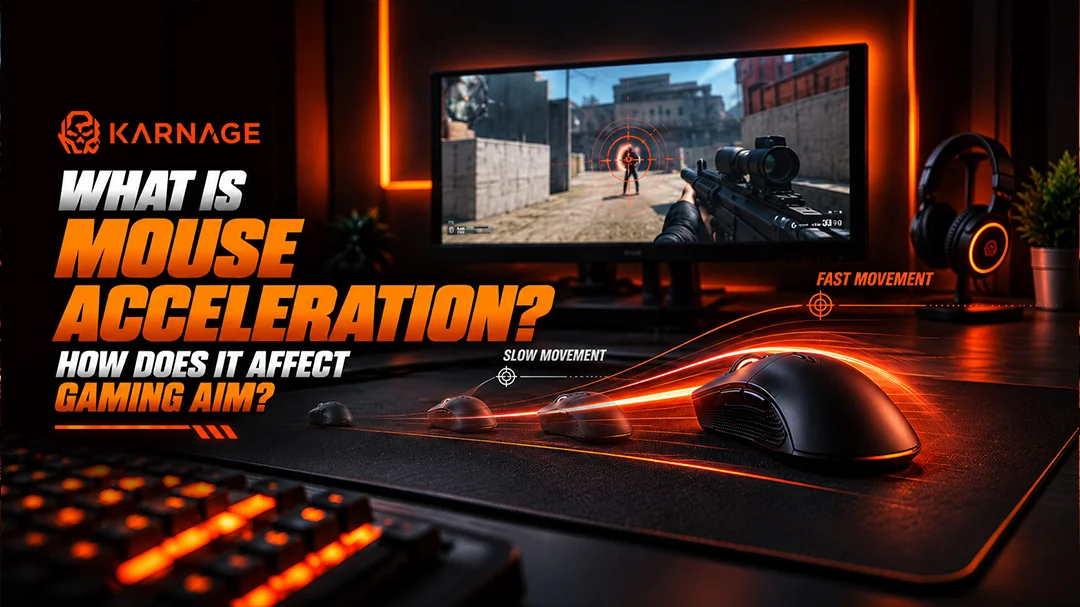
Mouse acceleration is a feature that changes how far the cursor moves based on how quickly you move your physical gaming mouse. Instead of depending only on the distance travelled by the mouse, cursor movement also depends on the speed of that movement.
When acceleration is enabled, moving your mouse quickly may move the cursor farther across the screen than moving it slowly over the same physical distance.
For example, imagine moving your mouse 5 centimetres slowly and then moving it the same 5 centimetres rapidly. With mouse acceleration enabled, the faster movement may produce a greater cursor displacement.
When acceleration is disabled, mouse movement is generally more consistent: moving the mouse the same physical distance produces approximately the same cursor movement, assuming sensitivity and other settings remain unchanged.
How Does Mouse Acceleration Work?
Mouse acceleration uses a relationship between mouse movement speed and cursor displacement. Depending on the operating system, driver, or software, faster movements may receive a larger movement multiplier.
This means the same physical movement can produce different on-screen results at different speeds. The exact behaviour depends on the acceleration implementation. Some systems use configurable acceleration curves, while gaming software may offer different profiles or acceleration settings.
Mouse Acceleration vs Mouse Sensitivity
Mouse acceleration and mouse sensitivity are related, but they are not the same.
- Mouse sensitivity determines how much the cursor or in-game view moves in response to mouse input.
- Mouse acceleration changes the relationship between physical movement and cursor movement according to movement speed.
For example, increasing sensitivity generally makes both slow and fast movements cover more screen distance. Enabling acceleration can make faster movements cover proportionally more distance than slower movements. Understanding this difference is useful when adjusting your mouse for gaming.
How Does Mouse Acceleration Affect Gaming Aim?
Mouse acceleration can significantly change how mouse movement feels, particularly in games that require precise aiming and rapid target tracking.
Muscle Memory and Consistency
Competitive gamers often develop muscle memory by repeatedly moving their mouse across familiar distances to aim at targets. With acceleration enabled, the same physical distance can produce different results depending on movement speed. This may make it harder for some players to reproduce familiar flicks or tracking movements consistently.
Disabling mouse acceleration can make the relationship between hand movement and on-screen movement more predictable, helping players practise repeatable aiming techniques. However, some experienced users deliberately train with acceleration and learn to control it effectively.
Flick Shots in FPS Games
Flick shots involve quickly moving your crosshair towards a target. In games such as Counter-Strike 2, Valorant, and other competitive shooters, a player may need to turn rapidly while maintaining precise control.
With mouse acceleration enabled, a fast flick may travel farther than a slower movement across the same physical distance. For players who prefer predictable aim, this behaviour can make flick shots feel inconsistent until they adapt to the acceleration curve. With acceleration disabled, consistent sensitivity can make it easier to practise repeatable flick distances.
Tracking Moving Enemies
Tracking requires keeping your crosshair aligned with a moving target. Sudden changes in cursor response can affect how comfortable this feels.
Some players prefer acceleration disabled because it makes tracking movements more predictable. Others may benefit from a carefully configured acceleration curve that supports both fine adjustments and fast turns. The best choice depends on your experience, game, and preferred aiming technique.
Quick Turns and Camera Movement
In games where players need to turn around rapidly, mouse acceleration can help cover a large amount of screen distance with a relatively small physical movement.
This can be useful when desk space is limited or when switching between precision aiming and rapid camera movement. However, the same behaviour can make smaller adjustments less predictable for players who are not accustomed to acceleration.
Advantages and Disadvantages of Mouse Acceleration
Mouse acceleration is not inherently good or bad. Its usefulness depends on how you use your computer and how consistently you can control the movement.
| Advantages | Disadvantages |
|---|---|
| Allows faster cursor movement without large physical movements | Can make aiming feel inconsistent for some players |
| Useful for navigating large or high-resolution displays | May complicate traditional muscle-memory training |
| Can help users who have limited desk space | Can make flick distances harder to reproduce |
| Offers flexibility for users who prefer speed-dependent movement | Requires practice and adjustment for predictable control |
For general desktop use, acceleration can make navigation more convenient. For competitive gaming, the priority is finding a configuration that allows you to control your aim reliably.
Should You Enable or Disable Mouse Acceleration for Gaming?
If you are new to competitive FPS games, starting with acceleration disabled is a practical approach. It gives you a more consistent relationship between physical mouse movement and cursor movement, which can simplify sensitivity tuning and aiming practice.
However, disabling acceleration is not a universal requirement for every gamer. Some experienced players prefer acceleration because it allows precise small movements and faster large turns within the same setup.
When You Should Consider Disabling It
You may want to disable mouse acceleration if:
- Your aim feels different when you move the mouse at different speeds.
- You struggle to reproduce familiar flick shots.
- You are trying to establish consistent mouse sensitivity.
- You frequently overshoot or undershoot targets despite practising similar movements.
When You Might Keep It Enabled
You may prefer to keep acceleration enabled if:
- You are comfortable with speed-dependent cursor movement.
- You use the same acceleration profile consistently.
- You need faster desktop navigation with limited mouse movement.
- You have trained extensively with a particular acceleration curve.
The most important factor is consistency. Avoid frequently switching settings while practising, as this can make it difficult to evaluate whether a configuration suits you.
How to Turn Mouse Acceleration Off in Windows
Windows includes a setting commonly called Enhance pointer precision, which applies pointer acceleration to normal desktop mouse movement.
To disable it:
- Open the Windows Start menu.
- Search for Mouse settings.
- Open the additional or advanced mouse settings.
- Select the Pointer Options tab.
- Uncheck Enhance pointer precision.
- Click Apply, then OK.
After changing the setting, test your mouse movement in your usual applications and games.
Does This Setting Affect Every Game?
Not necessarily. Some games process raw mouse input, which can bypass certain Windows pointer settings. Other games or input methods may behave differently. If your aim still feels inconsistent, check the game's own sensitivity settings, mouse software, and any acceleration options offered by the game or driver. Also, avoid changing multiple settings simultaneously. Adjust one variable at a time so you can understand its effect.
Mouse DPI, Sensitivity, and Polling Rate: What Is the Difference?
Mouse acceleration is only one part of mouse performance. DPI, in-game sensitivity, and polling rate also influence the way your mouse feels.
Mouse DPI
DPI describes how many counts a mouse reports per inch of physical movement. A higher DPI generally produces more cursor movement for the same physical distance when other settings remain unchanged. Many gamers choose a comfortable DPI setting and adjust their in-game sensitivity to achieve the desired aiming speed.
In-Game Sensitivity
In-game sensitivity determines how much your character's view or aim responds to mouse input. Its effect varies by game, so sensitivity values cannot always be compared directly between different titles. For consistent aim, choose a sensitivity that lets you make small adjustments while still turning comfortably.
Polling Rate
Polling rate describes how frequently the mouse reports its input to the computer, typically expressed in hertz (Hz). A higher polling rate can reduce the time between reports, although the practical benefit depends on hardware, software, system performance, and the game. Changing polling rate does not, by itself, disable mouse acceleration.
How to Find the Right Mouse Settings for Your Gaming Style
Rather than copying another player's settings, build a configuration that suits your own movement and desk space:
- Choose a comfortable mouse DPI.
- Set your in-game sensitivity to a manageable level.
- Decide whether you prefer acceleration enabled or disabled.
- Practise flick shots and tracking movements in the same game.
- Keep your settings consistent while evaluating your performance.
- Make small adjustments only when you identify a specific problem.
If you are experimenting with acceleration, give yourself enough practice time to adapt before deciding whether it helps. Consistent practice and comfortable ergonomics matter just as much as individual mouse settings.
Final Thoughts
Understanding mouse acceleration can help you make more informed decisions about your gaming setup. Acceleration changes the relationship between mouse movement speed and cursor displacement, which can influence aiming consistency, flick shots, and tracking. For gamers who prefer predictable input, disabling acceleration is a useful starting point. Players who value faster turns or prefer a customized acceleration curve may choose a different approach.
Ultimately, the best configuration is the one that feels controllable, suits your games, and remains consistent during practice. Combine sensible DPI and sensitivity settings with reliable gaming hardware to build a setup that supports your playstyle.
Explore the gaming mouse and accessories available at Karnage.in to find equipment that matches your gaming needs.
Frequently Asked Questions
1. What is mouse acceleration in simple terms?
Mouse acceleration changes how far your cursor moves according to how quickly you move your physical mouse. Faster movements may produce greater cursor displacement than slower movements across the same physical distance.
2. Is mouse acceleration good for gaming?
It depends on the player. Some gamers prefer it for faster turns and flexible cursor movement, while others prefer consistent sensitivity without acceleration for predictable aiming.
3. Do professional FPS players use mouse acceleration?
Preferences vary between players and games. Many competitive players favour consistent mouse input, but some experienced players use deliberately configured acceleration. There is no single setting that guarantees better performance.
4. Does mouse acceleration affect aim?
Yes, it can affect the relationship between physical movement and aiming movement. With acceleration enabled, the same physical distance can result in different cursor displacement at different movement speeds.
5. Is mouse acceleration the same as DPI?
No. DPI describes the mouse's reported counts per inch, while acceleration changes cursor displacement according to movement speed. Both influence how mouse movement feels, but they are different settings.
6. Does disabling mouse acceleration improve aim?
Disabling acceleration can make aiming more predictable for players who prefer a consistent relationship between hand movement and cursor movement. However, improvement depends on practice, sensitivity, hardware, and personal preference.
7. Does Windows Enhance pointer precision affect gaming?
It affects normal Windows pointer movement. Some games use raw mouse input and may bypass this setting, so the impact depends on the game's input implementation.
8. Should beginners disable mouse acceleration?
Beginners who want to establish consistent aiming habits may find it easier to start with acceleration disabled. They can experiment later if they want a different movement style.